Every business owner has the same problem: the same questions arrive again and again. What is the price? Is this item in stock? What is your refund policy? Can I get an appointment on Saturday? The answers already exist, buried in a price list, a PDF brochure or an old WhatsApp message. This guide is for owners and managers who want to build an AI knowledge base: a tool that reads your own documents and answers questions from them, so you or your team stop searching and retyping. By the end you will know how to prepare your files, set it up, test it and keep it safe.
What an AI knowledge base actually is
A normal chatbot answers from everything it learned in training. A knowledge base tool works differently. You upload your own files, and it finds the relevant passages and writes an answer from them. Google's help page for its Gemini Notebook tool describes this as chatting with your notebook to get information grounded in your sources, with in-line citations. The same page also says the tool may fail to answer when the information is not in your sources, and that when you upload many sources it first retrieves the most relevant pieces and then builds the reply.
That one detail explains most of what goes right and wrong. The tool is not "knowing" your business. It is searching your files and summarising what it finds. If the files are messy, the answers will be messy.
Start with the documents, not the tool
Setting up the tool takes minutes. Preparing the documents is the real work. Before you upload anything, do this:
- Collect only what customers or staff actually ask about: price lists, service descriptions, delivery and refund policies, timings, FAQs, brochures and onboarding notes.
- Delete duplicates and old versions. If your folder holds "price_list_final", "price_list_final_v2" and "price_list_NEW", the tool may quote any of them. Keep one current file per topic.
- Put a date at the top of each document and write what it covers in plain words, for example "Price list, valid from 1 April".
- Turn scanned images into real text. A photo of a printed menu is hard for the tool to read. A typed document or a proper PDF works better.
- Split mixed files. One 80-page PDF that covers pricing, policies and history is harder to search than three short documents with clear titles.
Ten clean, related documents will beat a hundred unsorted ones.
A sample example: a clinic's front desk
The example below is a sample scenario to show the process, not a real client result.
Imagine a small clinic whose front desk answers the same 25 questions all day: consultation timings, fees for common services, what to bring to the first visit, how to reschedule, and which insurance providers are accepted. The owner collects five documents: a fee list, a timings sheet, a first-visit checklist, a rescheduling policy and an insurance list. She removes two old fee lists, adds a "valid from" date to each file and uploads the five.
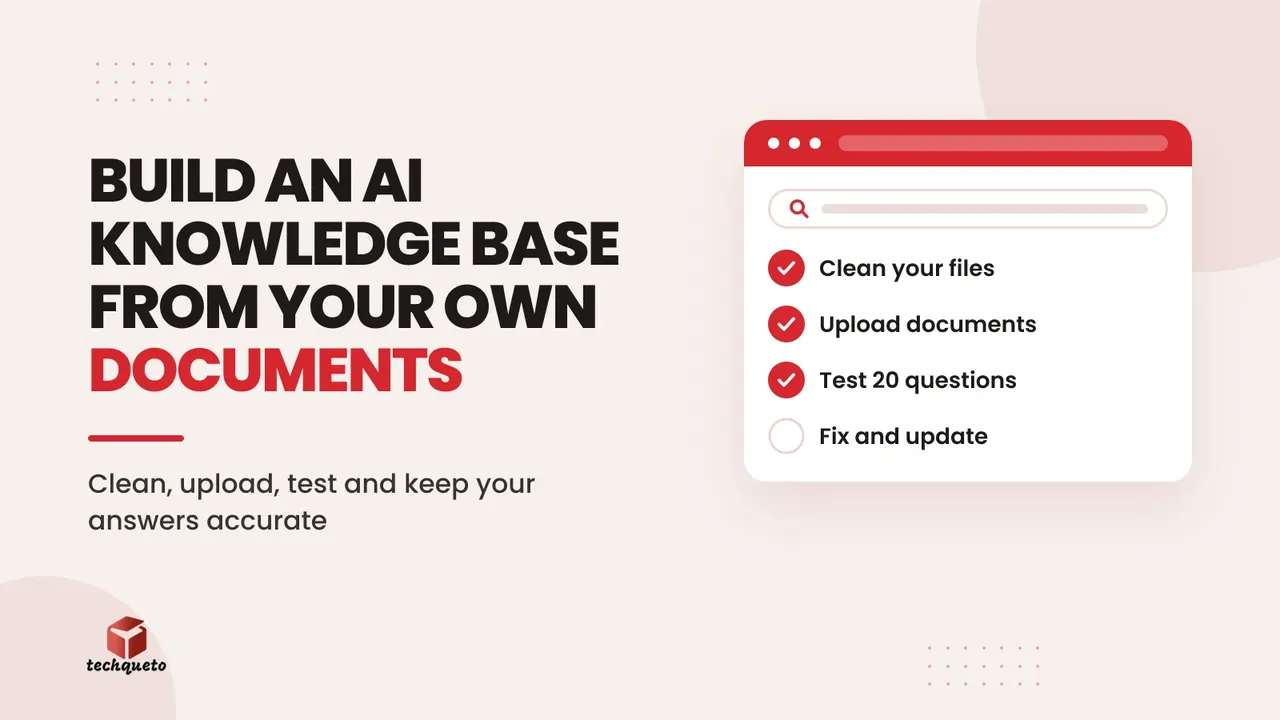
Then she tests it with 20 real questions taken from the past month of calls and messages. Suppose it answers 17 correctly with a citation, gives one answer from the old fee list she forgot to remove, and says "not in the sources" for two questions about parking. She deletes the old file, writes a short parking note, and tests those three questions again. Now the staff trust it enough to use it at the desk. That is the whole loop: collect, clean, test, fix.
When we built the website and patient-enquiry setup for Sadaya Healthcare, the work centred on helping a healthcare provider receive and handle enquiries. A clinic website like that is a natural place for this next step, because the questions that come in through the site and by phone are the same repeated ones. The clinic scenario above is only an illustration of how it could work.
How to set it up in five steps
- Pick one narrow job. "Answer front-desk questions" is a good job. "Run the whole business" is not.
- Choose a tool that answers from your own files. Google's Gemini Notebook is one example, and many website chat tools and business assistants offer the same idea. Check the tool's help page for how it handles your data.
- Upload your clean documents and give each a clear name.
- Write your test list. Take 20 to 30 real questions from your inbox, calls and WhatsApp chats.
- Score the answers. For each question, mark it correct, wrong, or "could not find". Fix the document behind every wrong answer, not the question.
Do this: Always click through the citation on a few answers. A confident sentence with the wrong source behind it is the most common failure.
Why retrieval gets it wrong
Because the tool picks the passages that look most similar to your question, it can pick the wrong ones. A question about "refund for a cancelled order" may match your delivery policy text more closely than your refund policy, even though only the refund policy holds the answer. You can reduce this in three ways: use clear headings, keep one topic per document, and write the answer in the same words customers use. If customers say "money back", include that phrase in your refund policy.
Google's page also notes that a clearer, more specific question helps the tool find the right pieces. Teach your staff to ask the tool specific questions, such as "What is the fee for a follow-up consultation?" rather than "Tell me about fees".
What never to upload
A knowledge base is for business information, not for personal records. Keep these out:
- Customer or patient lists, phone numbers, addresses and medical or financial details
- Signed contracts, bank details and passwords
- Documents you do not have the right to share, such as another company's copyrighted material
India's Digital Personal Data Protection Act, 2023 is built around processing personal data only for a lawful purpose, with consent or another permitted ground, and it places a duty on organisations to keep reasonable security safeguards. You can read the full text on India Code, and the Ministry of Electronics and IT publishes the Act and its rules on meity.gov.in. If your documents contain personal data, take legal advice before uploading them anywhere.
Keep a human in the loop
Google's own notice says the tool can make mistakes and that you should consult a qualified professional for medical, legal or financial advice. Treat the knowledge base as a fast assistant for your team, not a replacement for judgement. For anything involving money, health or a legal commitment, have the tool point to the source document and let a person confirm. Our guide on setting rules for an AI assistant covers how to write these boundaries down.
Keep it current
An AI knowledge base ages the moment your prices or policies change. Pick one owner and set a monthly reminder to do three things: replace outdated files, add any new questions that came up, and rerun your test list. If scores drop, the cause is almost always a document that changed or a duplicate that crept back in.
If your website already sends enquiries to WhatsApp, the same questions that arrive there make the best test list. Our post on a WhatsApp button for your website explains how to capture and track those enquiries. If you want help planning an AI setup around your own documents, see our AI solutions page.
Your first week with an AI knowledge base
Spend day one choosing the one job and gathering its documents. Spend day two cleaning, dating and renaming files. On day three upload them and run your 20-question test. Use days four and five to fix the wrong answers at the source, then let two or three team members try it on real questions for the rest of the week. If most answers are right and every wrong answer is traceable to a document you can fix, you have a working knowledge base. If not, the lesson is still useful: you now know which of your documents were unclear to customers too.