If you run a clinic, a coaching centre, an interiors studio, a shop or a small manufacturing business in India, you already know where most enquiries land: WhatsApp. This guide is for owners and marketing managers who want a WhatsApp button for their website that brings in real enquiries instead of just sitting in the corner of the screen. By the end you will know how to build the link, where to place it, what to back it up with, and how to see which pages are actually producing chats.
Why a plain floating chat button leaks enquiries
Most business sites carry the same green icon in the bottom corner. A visitor taps it, WhatsApp opens with an empty message box, and a lot of people simply close it. They were not sure what to type, or what the business would ask back.
Three things usually go wrong:
- The message box is blank. The visitor has to compose a first message on a small screen, so many do not bother.
- You do not know which page the chat came from. A message that says only "Hi" tells you nothing about whether the person was looking at a 2BHK interior package or your fee structure.
- Nobody counts the taps. Without tracking, you cannot tell whether the button works, so it never gets improved.
If your site gets visits but few enquiries, also read our guide on finding and fixing the leak in your ad funnel, because a weak button is only one of several places leads drop out.
Step 1: Build a click-to-chat link with a prefilled message
WhatsApp supports a simple link format called click to chat. You build it from your number in international format (for India, 91 followed by the ten digits, with no plus sign, spaces or dashes) and an optional text parameter. The structure is https://wa.me/91XXXXXXXXXX?text= followed by your message with spaces written as %20. WhatsApp explains the format in its own help page on how to use click to chat.
The useful part is the text parameter. Instead of a blank box, the visitor sees a ready message they only have to send. Use a different message for each kind of page:
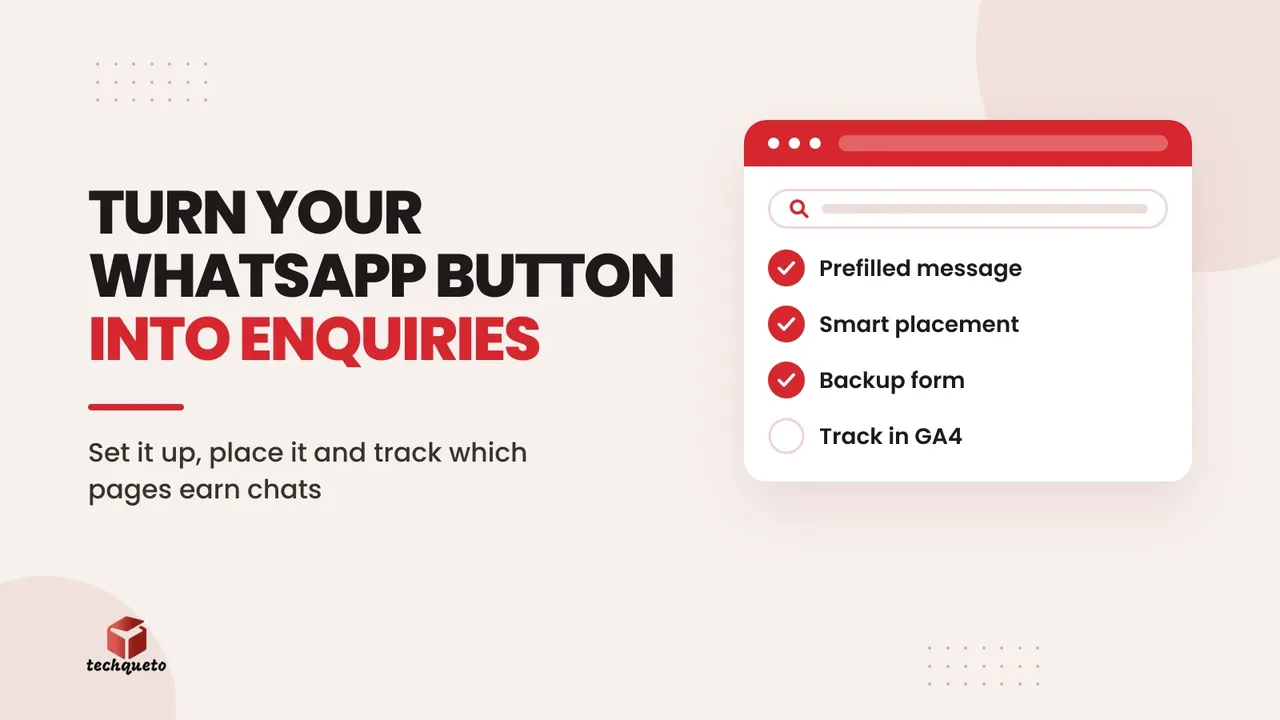
- On a service page: "Hi, I saw your interior design page and would like a quote for a 2BHK."
- On a doctor or treatment page: "Hi, I would like to book an appointment. Please share available slots."
- On a product page: "Hi, I am interested in this product. Is it in stock?"
- On the home page or contact page: "Hi, I would like to know more about your services."
Do this: Put the page or service name in each prefilled message. When the chat arrives, you instantly know what the person wanted, and your reply can start with the answer instead of a question.
Step 2: Place the button where the decision is made
A corner icon is fine as a backup, but the highest-converting spot is usually inside the content, next to the thing the visitor is deciding about. A few placements that tend to work well on mobile, where most Indian visitors are:
- A clear text button, such as "Get a quote on WhatsApp", just under the first screen of a service page, not only an icon.
- A button after the price, package or fee section, where the visitor has just seen the numbers.
- A sticky bar at the bottom of the phone screen with two options side by side: call and WhatsApp.
- The header or footer on the contact page, so nobody has to hunt for it.
Keep the button fast too. A button that appears late or makes the page jump annoys people before they even tap it. Our guide to fixing a slow website with Core Web Vitals covers the speed checks worth doing.
Step 3: Keep a short form as a backup
Not everyone wants to open WhatsApp. Some are on a work laptop, some do not want to share their number with a business before they have decided, and some simply prefer email. Offer both routes on the same page:
- A WhatsApp button for people who want a quick answer.
- A short form with only three fields: name, phone number and what they need.
Resist the urge to add ten fields. Every extra field costs you enquiries. Ask for the detail later, in the conversation.
Step 4: Track button taps in Google Analytics 4
A tap on a WhatsApp link does not show up in your reports on its own. You need to record it as an event. The usual approach is to have your developer, or Google Tag Manager, send an event such as whatsapp_click to Google Analytics 4 each time the link is clicked, and include the page it was clicked on.
Then, in Analytics, you can mark that event as a key event, so it is counted like a goal. Google describes the steps in its help pages on marking events as key events and creating or modifying key events. Once that is done, you can open your reports and see which pages and which traffic sources produce the most WhatsApp taps.
One honest limit: a tap is not an enquiry. Some people tap and never send the message. So treat the number as an upper bound, and keep a simple record of real chats as described in the next step.
Step 5: Log every chat and reply fast
The tracking only matters if the chats are handled. Set up a routine your team can follow without thinking:
- Use the WhatsApp Business app so you can save quick replies for your most common questions, such as fees, timings, location and brochure.
- Write a short greeting and an away message so people know when to expect a reply outside working hours.
- Note each new chat in a shared sheet with the date, the page or source, the person's need and the outcome (booked, quoted, lost).
- Decide who replies, and agree a target. A reply within a few minutes in working hours feels very different from one the next day.
A worked example with made-up numbers
The figures below are an example only, to show how to read your own numbers. Say a service page gets 1,000 visits in a month:
- 40 people tap the WhatsApp button, which is 4 in every 100 visitors.
- 25 of those send a message (some tapped and left).
- 8 become real quotes.
- 3 become customers, each worth ₹12,000.
That page earned ₹36,000 in the month from WhatsApp alone. Now you can improve one thing at a time. If taps are low, test the button text and placement. If taps are fine but messages are few, rewrite the prefilled text. If messages are many but customers are few, the problem is in the reply speed or the quote, not the website.
How this fits into real client work
When we worked with Sadaya Healthcare, the work listed on our Work page covered a website and patient-enquiry generation. For a clinic, that is exactly the situation where a simple "book an appointment" route matters, because a patient is often on a phone and wants a quick answer. If you are planning a site that has to bring in enquiries, our website service page explains how we approach it.
Your first week with a WhatsApp enquiry button
Here is a simple plan you can follow in seven days:
- Day 1: Write three prefilled messages, one for each of your top service pages, and build the links.
- Day 2: Add a text button near the top of those pages and a call plus WhatsApp bar on mobile.
- Day 3: Add the three-field backup form.
- Day 4: Ask your developer to send a
whatsapp_clickevent to Analytics and mark it as a key event. - Day 5: Save quick replies and an away message in the WhatsApp Business app.
- Days 6 and 7: Start your enquiry sheet, and agree who replies and how quickly.
Do this: After a month, compare taps with real chats and customers for each page. Fix the page with the biggest gap first.