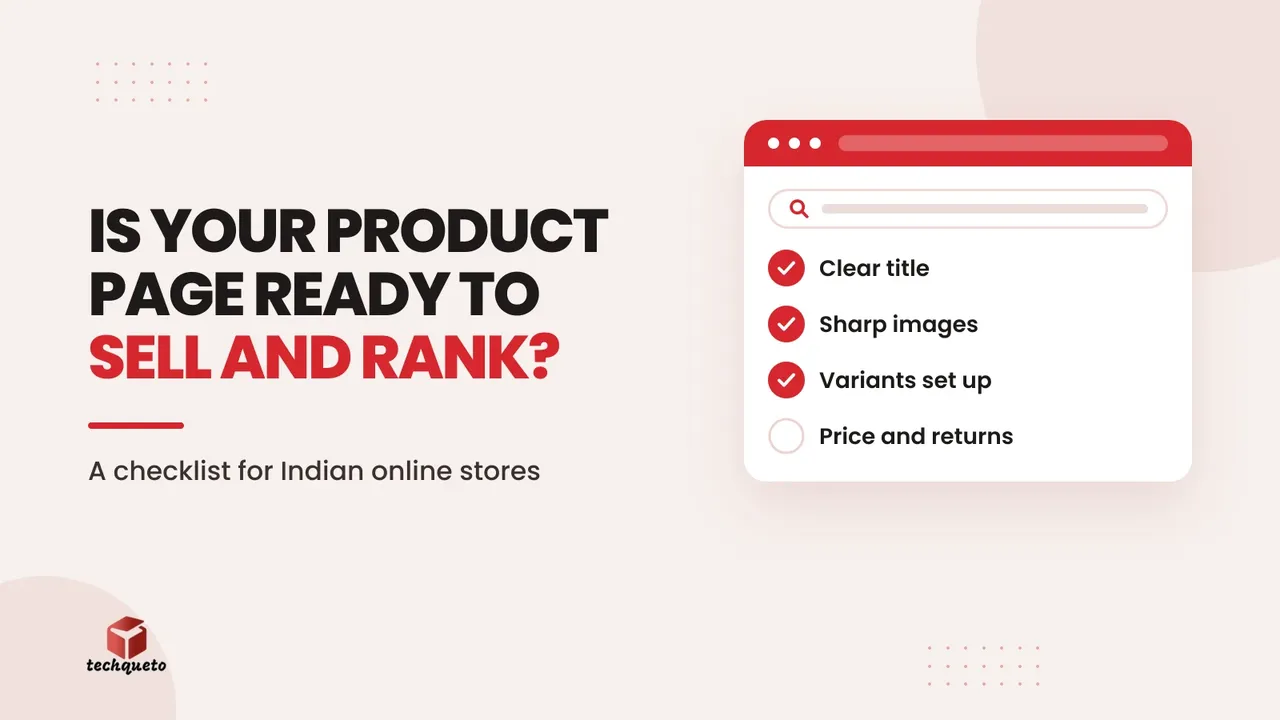
This guide is for owners and marketing managers of small and mid-size online stores in India: fashion labels, home brands, food and lifestyle D2C businesses. After reading it, you will be able to audit any ecommerce product page against a clear checklist, fix the gaps that quietly cost you orders, and set the page up so Google can read and show your products accurately.
Most owners spend money on ads and social media to bring people to a store, then lose them on the product page. A shopper who lands there is asking five quick questions. What exactly is this? Does it come in my size or colour? What does it cost? When will it reach me? Can I return it? If the page does not answer all five in a few seconds, the visit ends. The same fields also feed Google, so a product page that answers shoppers well is usually also easier for search engines to understand.
Who reads a product page, and what they decide
A visitor arriving from an Instagram ad, a Google search or a WhatsApp link has already shown some interest. The page only has to remove doubt. Doubt comes from vague names, a single photo, hidden delivery costs, sizes that are unclear, or a return policy nobody can find.
We built the online store and set up the product listings for Omexcart, a retail ecommerce project in our portfolio. Product-listing setup is where this checklist matters most, because every listing repeats the same fields. A gap in the template is therefore repeated on every product in the catalogue, and fixing the template once fixes all of them.
Write a product title that does the selling
Google's own guidance for clothing and accessories advises putting the most important details within the first 70 characters of a title, and using a structure of brand, product type and then other key attributes. Merchant Center allows titles of up to 150 characters, but shoppers and search results reward the opening words most.
A weak title: Kurta Set.
A stronger title (example): Women's Cotton Kurta Set, Indigo Block Print, Size M.
What to include, where it applies:
- The product type in plain words a shopper would type
- Colour, size and material, since Google notes these often decide whether a shopper buys
- Gender or age group if the photo does not make it obvious
- Anything that sets the product apart, such as a personalisation option
Use the same colour name everywhere. Google's guidance is that the colour in your product data should match the name on the landing page, and gives the example of keeping "ocean" rather than changing it to "blue". Pick the name once and use it in the title, description and colour field.
Show the product properly with images
Photos carry more of the buying decision than any paragraph of text. Google's guidance for clothing recommends showing garments on a model, using a plain white or transparent background for the main image, and adding extra images with multiple angles and close-ups. For items like bags or shoes, it suggests the main image shows the product alone, with on-model photos as additional images.
Practical image rules for a small store:
- Use one clean main image where the product is clearly visible
- Add close-ups of fabric, stitching, labels or finish
- Add at least one image that shows scale or the product in use
- Keep resolution well above the minimum. Google's clothing guidance recommends going to 1024 pixels or more rather than just meeting the floor
- Make sure each variant (colour) has its own matching photos, so the image never shows a colour the customer did not choose
Heavy images can slow a page down, which hurts both shoppers and search. Compress them, and see our Core Web Vitals guide for business owners for how to check speed.
Handle variants without confusing shoppers or Google
Variants (sizes, colours, materials) are where many Indian stores go wrong, often by cramming everything into one listing with a drop-down that is not reflected anywhere else. Google's guidance for product data is that each combination of colour, size, material or pattern should be its own item, grouped under one item group ID. Its own example: a pair of shoes in 3 sizes, 4 colours and 2 materials has 24 variants.
A simple example for a kurta set sold in 3 sizes and 2 colours: that is 6 variants, each with its own ID, size and colour, all grouped as one product. Google also says the landing page should open with the right variant already selected, so someone who clicks a result for the indigo version sees indigo, not the default.
Two further points from Google's structured data documentation: rich product results support pages focused on a single product or variants of the same product, and Google recommends marking up product pages instead of category pages that list many products. If you sell in more than one currency, it recommends a distinct URL per currency.
State price, availability, shipping and returns plainly
Shoppers abandon pages where the real cost appears late. Put these on the page itself, near the buy button, in words and numbers:
- The current price, and the original price if it is a sale. Google supports marking a strikethrough price and a start and end for the sale period, so make sure your store removes sale markup when the sale ends
- Whether the item is in stock
- Delivery cost and an expected delivery window
- The return or exchange rule, in one sentence, with a link to the full policy
- The payment options you accept, including cash on delivery if you offer it
Example (labelled as an example): a kurta set shown at ₹1,499, struck down from ₹1,999, with "Free delivery in 3 to 6 days. 7-day exchange for size." A shopper can decide on that without leaving the page.
For return policy markup, Google recommends that a standard policy covering most products be defined once at the business level rather than repeated on every product, with product-level markup used only to override it.
Add the data Google reads: structured data
Product structured data is code on the page that spells out the name, image, price, availability and more in a form search engines understand. According to Google's merchant listing documentation, the required properties are the product name, an image and an offer. It also lists many recommended ones, such as description, brand, colour, global product identifiers (GTIN), ratings, shipping and return details. Adding them makes a page eligible for experiences such as product results and the shopping knowledge panel, but it does not guarantee that they appear.
Some details that trip people up:
- The page must let a shopper buy the product. Pages that only link out to another site selling it are not eligible
- For best results, Google recommends putting product markup in the page's initial HTML. Markup generated by JavaScript can make shopping crawls less frequent and less reliable, which matters for fast-changing price and stock
- The values in your markup must match what shoppers see on the page
Do this: Run one product page through Google's Rich Results Test before you roll a template out to the whole catalogue, then confirm it with the URL Inspection tool in Search Console.
If you also upload your products to Google Merchant Center, keep that feed consistent with the page. Google's guidance on product data quality says that products whose data does not match the website can be disapproved and stop showing in Shopping ads and free listings. Google's documentation also notes that providing both structured data and a Merchant Center feed helps maximise eligibility for shopping experiences.
Common mistakes on small-store product pages
- Only one photo, often a marketplace-style image with text overlays
- Titles written for internal stock keeping, such as "SKU 4471 Set"
- Sizes listed in a dropdown but never in the product data, so Google and shoppers cannot see them
- Prices updated in the store but not in the structured data or feed
- Sale strikethrough prices left on after the offer ends
- Shipping and return rules buried three clicks away
- A slow page because of uncompressed images
- No visible way to ask a question. A WhatsApp button that records which pages produce enquiries helps; see our WhatsApp button guide
If you sell on marketplaces too, these pages are also what you own. A marketplace listing is rented space, while your own product page builds your brand and customer list. Our guide to D2C website vs marketplace goes into the margin side of that choice.
Before you publish a product page: a final check
Go through the page the way a first-time visitor on a mobile phone would, then check the data behind it.
- The title opens with the product type and key attribute, and the colour name matches everywhere
- A clear main image, close-ups and variant-specific photos, all compressed
- Each size and colour combination is its own item, grouped under one product, and the link opens with the right variant selected
- Price, stock, delivery cost and time, and return rule are all visible without scrolling far
- Product structured data is in the page's HTML and passes the Rich Results Test
- Any Merchant Center feed matches the page on price, availability and colour names
- The Merchant listings report in Search Console shows no new errors a few days after launch
If you are planning a new store or rebuilding product templates, our website planning page lays out how we approach it. A product page rarely needs to be clever. It needs to answer five questions quickly and give Google the same answers in a form it can read.
Sources: Google Search Central: Merchant listing structured data; Google Merchant Center Help: Best practices for advertising clothing and accessories; Google Merchant Center Help: Fixing disapprovals for product data quality violations; Google Search Central Blog: Merchant listings report.